

AIO Launcher
2 likes
AIO Launcher is not ordinary home screen. It does not have colorful icons, many animation effects and a variety of themes. Instead, AIO Launcher uses a screen space to show you the most important information.
Cost / License
- Freemium (Pay once)
- Proprietary
Platforms
- Android
- Android Tablet

Features
- Launcher
AIO Launcher News & Activities
Highlights All activities
Recent activities
No activities found.
AIO Launcher information
Developed by
 Evgeny Zobnin
 Licensing
Proprietary and Freemium product.Pricing
One time purchase (perpetual license) that costs $2 + free version with limited functionality.Alternatives
1 alternatives listedSupported Languages
- English

No comments or reviews, maybe you want to be first?
Featured in Lists
The launcher (or application launcher) is the backbone of Android, the screen where you spend the most time. This …
List by Paul with 15 apps, updated
Every section on this list will contain a set of different items that can be chosen based on your personal preference. …
List by Ituaf with 11 apps, updated
What is AIO Launcher?
AIO Launcher is not ordinary home screen. It does not have colorful icons, many animation effects and a variety of themes. Instead, AIO Launcher uses a screen space to show you the most important information.
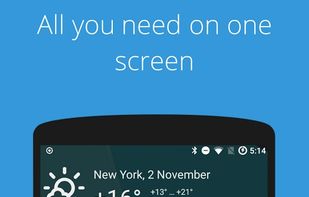
AIO Launcher can display the following information on the screen:
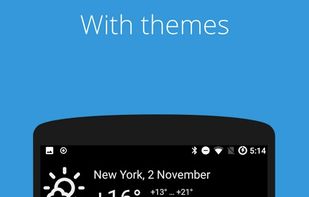
- Weather - current weather and forecast for 10 days;
- System monitor - RAM and NAND usage, percentage of battery power;
- Player - when you turn on the music, playback control buttons appear;
- Frequent apps - frequently used applications buttons;
- Frequent contacts - the list of recent contacts;
- Your apps - the icons of the selected applications (paid);
- SMS - recently received SMS;
- Dialer - numpad for quick calls;
- Timer - timer start buttons;
- Mail - list of received emails;
- Telegram - last messages (paid);
- RSS - latest news;
- Twitter - all tweets or a single user tweets;
- Calendar - upcoming events in the calendar;
- Exchange rates - currency exchange rates;
- Bitcoin - the bitcoin price;
- Android widget - standard app widgets (paid).
Usage:
- To add the Android widget, long press search button and select the "+" icon;
- To resize the widget, hold the finger on the widget, then use the up and down buttons;
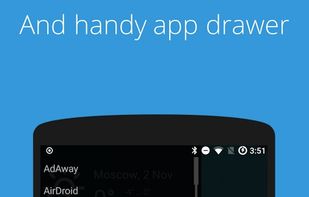
- To access the list of all applications, drag from the left edge of the screen;
- To refresh the information on the screen, pull down;
- Hold finger on various elements of the screen to open menu;
- To open settings, hold your finger on the search button, and then click the gear icon;
- Hold the title of the widget to move it around;
- Any widget can be disabled in settings;
- You can minimize the widget by clicking on its name;
- To remove an application, open the application menu, hold your finger on the desired application, and drag it to the recycle bin icon.