

Solace Alternatives
Solace is described as 'Adapts Mac appearance to weather, light, and solar position, with intelligent mode switching, dynamic wallpapers, and privacy-focused automatic adjustments' and is a color temperature tool in the online services category. There are more than 100 alternatives to Solace for a variety of platforms, including Windows, Mac, Linux, Android and Wayland apps. The best Solace alternative is f.lux, which is free. Other great apps like Solace are Redshift, LightBulb, Sucrose Wallpaper Engine and Variety Wallpaper Changer.
Alternatives list

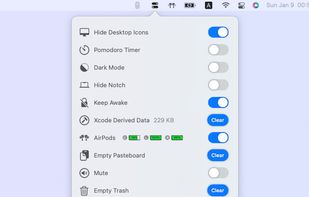
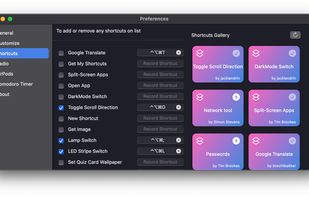
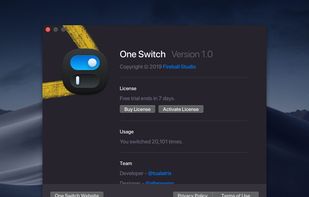
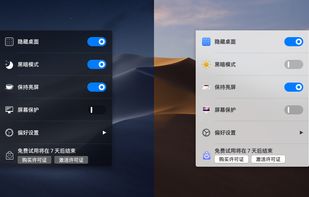
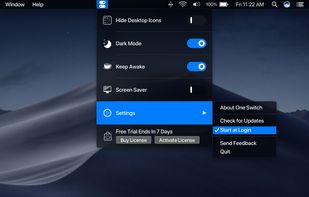
OnlySwitch provides a series of toggle switches to simply your routine work, such as Hidden desktop icons, dark mode and hide notch of new Macbook Pro. The switches show on your statusbar, you can control them effortlessly.
Cost / License
- Free
- Open Source (MIT)
Platforms
- Mac


 52 Desktop Live Wallpapers alternatives
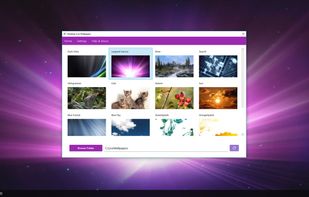
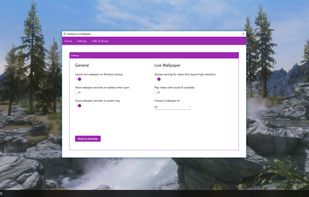
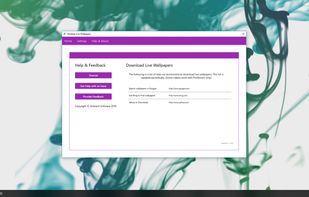
Desktop Live Wallpapers brings animated wallpapers to your desktop! Load all your personal video files into this app and set it as your wallpaper or download from collections of hundreds of beautiful animated wallpapers.
Cost / License
- Freemium
- Proprietary
Application type
Platforms
- Windows
 United States
 +1
+1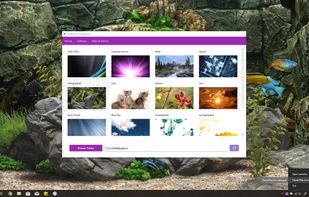


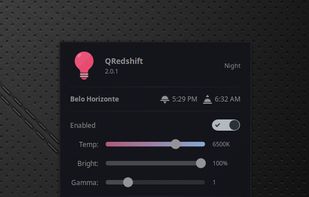
It makes the color of your computer's display adapt to the time of day, warm at night and like sunlight during the day.
Cost / License
- Free
- Open Source (Apache-2.0)
Application type
Platforms
- Linux
- Cinnamon
 Brazil


The ultimate ultra-lightweight, 100% free video live wallpaper engine designed specifically for low-end PCs (2GB/4GB RAM) with zero-lag gaming performance.
Cost / License
- Free
- Proprietary
Platforms
- Windows
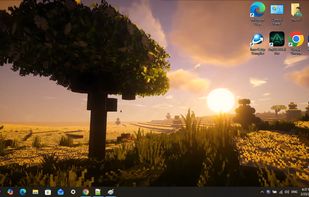


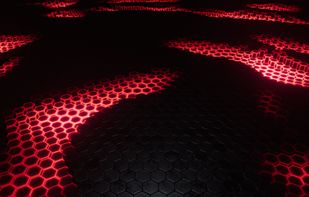
Interactive 3D wallpaper that reacts on any sound. Play your music on YouTube, Spotify etc. and enjoy the spectacle.
Cost / License
- Paid
- Proprietary
Platforms
- Windows
- Steam

 +4
+4


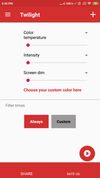
Twilight Blue Light Filter is an optimal night filter that can be created to provide a warm light night screen for your eye care.
Cost / License
- Free
- Proprietary
Application type
Platforms
- Android
 India
India



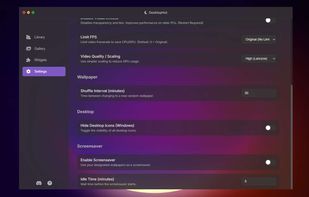
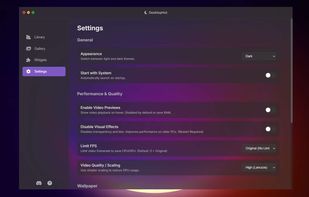
DesktopHut v10.0.1 is a Windows live wallpaper application packed with features for smooth, customizable desktop backgrounds:
Cost / License
- Free
- Proprietary
Platforms
- Windows
- Global

 +6
+6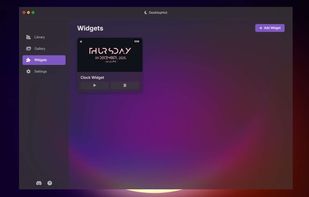


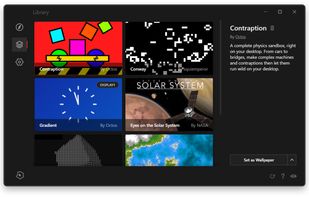
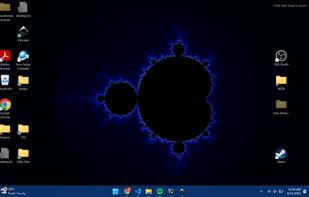
Engine for interactive desktop wallpapers powered by HTML, CSS, and JS. Explore and apply live community creations or design custom wallpapers. Real-time preview, minimal resources, open-source, and supports running interactive HTML5 content as desktop background.
Cost / License
- Free
- Open Source (MIT)
Application type
Platforms
- Windows

 +5
+5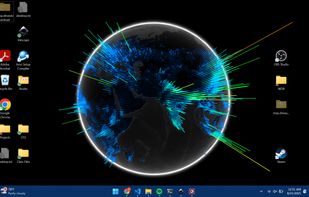


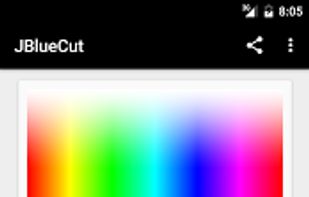
"JBlueCut" is a blue light screen filter - eye protection App. Can effectively reduce the bluelight on screen and ease eyestrain by few simple steps.
Cost / License
- Free
- Proprietary
Application type
Platforms
- Android


Cost / License
- Paid
- Proprietary
Platforms
- Mac
 +3
+3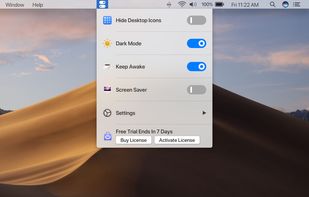


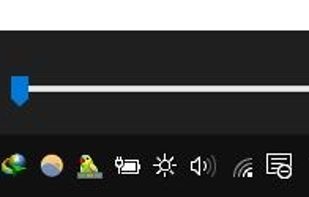
this app puts a Monitor Brightness icon to on Taskbar Tray. So you can access it with 1 click.
Cost / License
- Free
- Open Source
Platforms
- Windows


 Denmark
 EU
EU


