Tab Display
15 likes
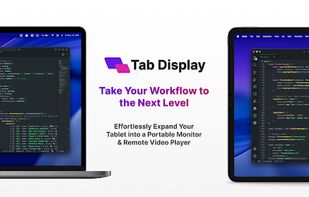
Allows extension of a Mac or Windows workspace to iPad, Android, macOS, or Windows devices as portable second screens, supporting multiple connections, wireless linking, cross-platform use, and practical multitasking like separating documents, chat, or meetings.

Cost / License
- Freemium (Pay once)
- Proprietary
Application type
Platforms
- Mac
- Windows
- Android
- iPhone
- Android Tablet
- iPad


Features
Tab Display News & Activities
Highlights All activities
Recent News
No news, maybe you know any news worth sharing?
Share a News TipRecent activities
- darkjelly updated Tab Display
 Stephen-Lovino added Tab Display as alternative to BetterCast Display
 developersharif added Tab Display as alternative to EasySwitch
- Danilo_Venom updated Tab Display
 Danilo_Venom added Tab Display as alternative to Side Screen
 Danilo_Venom added Tab Display as alternative to MacDisplay
- darkjelly updated Tab Display
- ofiane liked Tab Display
- bgrateful321 liked Tab Display


Tab Display information
Developed by
ENFP-Dev-StudioLicensing
Proprietary and Freemium product.Pricing
One time purchase (perpetual license) that costs $3 + free version with limited functionality.Alternatives
16 alternatives listedBadge
Get an embeddable badge for Tab DisplaySupported Languages
AlternativeTo Categories
Office & Productivity, OS & Utilities, System & Hardware, Remote Work & EducationApple AppStore
- Updated
- 4.24 avg rating


No comments or reviews, maybe you want to be first?