Windows 10 Virtual Desktop Hotkeys and System Tray Icon
Features:
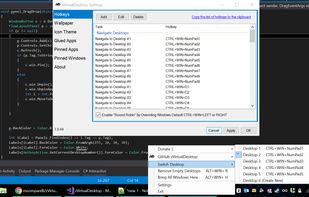
List of all hotkey actions
-Disable Default
-Keyboard Application Menu
-Toggle Auto-hide Taskbar
-Open a File
-Copy
-Paste
-Toggle Desktop View
-Toggle zVirtualDesktop Settings
-Show Window Menu
-Navigate to Desktop
-Move Window to Desktop
-Move Window to Desktop & Follow
-Pin/Unpin Window
-Pin/Unpin Application
-Bring All Windows Here
-Remove Empty Desktops
-Close Foreground Window
-Minimize Foreground Window
-Toggle Foreground Window Top Most
-Multimedia - Play/Pause
-Multimedia - Next
-Multimedia - Previous
-Volume Up
-Volume Down
-Volume Mute
-Browser Back
-Browser Forward
-Browser Reload
-ClipboardEx Copy
-ClipboardEx Paste
-ClipboardEx Clone
-Send Keystroke
-Send Text Entry
What is the difference between pin app and pin window?
An easy way to imagine this is if you use pin window on a chrome browser window, only that window will be visible on all desktops. Any other chrome windows would stay on a single desktop. If you were to pin application on a chrome window then all chrome windows would show up on all desktops. This includes new chrome windows.
System Tray Icon:
-Choose from several sets of icons
-The icons indicate which desktop you are viewing
-Left-Click the system tray icon to bring up the default Task View overlay.
-Double-Left-Click the system tray icon to show the settings form.
-Right-Click the system tray icon to bring up the main menu. You can donate to me in this menu since you love this app :)
Make your own icons and attach them to an issue then I will add them to the program.
Wallpapers:
-Set a different wallpaper for each desktop
-Specify the style for each (Center, Stretch, or Tile)
Desktop Names:
-Rename desktops directly in DesktopView
Move All Windows
I added a really handy feature which you can also create a hotkey for. This feature lets you move all open windows across all desktops to the currently active desktop.




 Fla added zVirtualDesktop as alternative to Move Window Between Desktops
 dmcdivitt added zVirtualDesktop as alternative to dt_noodle
 Michael Zomparelli
