


Open Publisher
2 likes
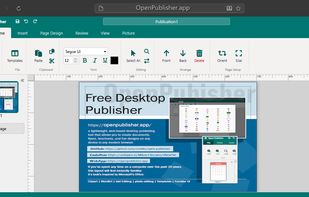
Open Publisher is a lightweight, web-based desktop publishing tool that allows you to create documents, flyers, brochures, and fun designs on any device in any modern browser.

Cost / License
- Free
- Open Source (GPL-2.0)
Application type
Platforms
- Online
- Self-Hosted


Features
Open Publisher News & Activities
Highlights All activities
Recent activities
- r2_d1000 liked Open Publisher
 quaterio added Open Publisher as alternative to Quaterio
- Melisa_Safiyya liked Open Publisher
 rmellis added Open Publisher as alternative to Swift Publisher
 rmellis added Open Publisher as alternative to LibreOffice - Draw
 rmellis added Open Publisher as alternative to Growly Write
 rmellis added Open Publisher as alternative to Adobe FrameMaker
 rmellis added Open Publisher as alternative to Microsoft Publisher
 rmellis added Open Publisher as alternative to Adobe InDesign and Scribus
 rmellis added Open Publisher as alternative to RagTime and VivaDesigner


Open Publisher information
Developed by
 rmellis
 Licensing
Open Source (GPL-2.0) and Free product.Written in
Alternatives
9 alternatives listedBadge
Get an embeddable badge for Open PublisherSupported Languages

AlternativeTo Categories
Photos & Graphics, Office & ProductivityGitHub repository
- 17 Stars
- 1 Forks
- 0 Open Issues
- Updated


No comments or reviews, maybe you want to be first?