


Presentify
2 likes
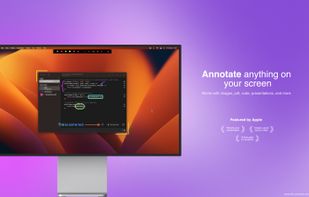
A macOS menu bar app that helps you give better presentations, online classes, or video tutorials by letting you annotate any screen, highlight your cursor, and more.

Cost / License
- Pay once
- Proprietary
Application typeApplication types
 EU
EUPlatforms
- Mac


Features
Presentify News & Activities
Highlights All activities
Recent News
No news, maybe you know any news worth sharing?
Share a News TipRecent activities
 Danilo_Venom added Presentify as alternative to EpicPencil
- Danilo_Venom updated Presentify
 mustafacerit added Presentify as alternative to ScreenMark
 Danilo_Venom added Presentify as alternative to RePen
 mashyo added Presentify as alternative to SHARA
 dimuz added Presentify as alternative to Pointerly
 msasa added Presentify as alternative to FlowInk
 fjeckel added Presentify as alternative to SketchMouse
 Danilo_Venom added Presentify as alternative to CapyCursor
 user6759 added Presentify as alternative to DemoPro


Presentify information
Developed by
 Softal.io
 Licensing
Proprietary and Commercial product.Pricing
One time purchase (perpetual license) that costs $5.Alternatives
21 alternatives listedBadge
Get an embeddable badge for PresentifySupported Languages

No comments or reviews, maybe you want to be first?
